Search for classroom display technology today, and you’ll come across three different names for what is largely the same product: Android interactive panel, Android smart board, and Android digital board. Schools across India and beyond are replacing chalkboards, marker boards, and projector-and-PC setups with large Android-powered touchscreens that combine a display, a computer, and a writing surface into a single device.
If you’re a school leader or procurement officer trying to cut through the terminology and compare real specifications, this guide covers what these panels actually are, the features worth paying attention to, and a detailed look at Senses’ SensePRO and SenseEDGE interactive flat panels so you can compare numbers before you buy.
What Is an Android Interactive Panel?
An Android interactive panel is a large-format touchscreen display, typically 65 to 105 inches, that runs the Android operating system natively. Teachers can write, annotate, browse, and run apps directly on the screen without connecting a separate laptop or PC, replacing the traditional whiteboard-plus-projector-plus-computer setup with one integrated device.
Because the panel runs Android, teachers can use familiar tools such as Google Classroom, YouTube, and presentation apps straight from the screen, while a built-in whiteboard app handles handwriting, diagrams, and annotation with a finger or stylus.
Android Smart Board vs Digital Board vs Interactive Panel: Is There a Real Difference?
Not really. These three phrases almost always describe the same category of device. The differences come down to regional habit and industry jargon rather than the underlying technology.
| Term | Where It’s Commonly Used | What It Refers To |
| Interactive Panel / Interactive Flat Panel (IFP) | Industry specs, procurement documents, technical comparisons | The formal product category name |
| Smart Board | Everyday searches and general conversation | The same product, casual usage |
| Digital Board | Very common across Indian schools and EdTech procurement language | The same product, regional usage |
If you’re comparing quotes from different vendors, treat all three terms as the same device category and judge them on actual specifications rather than the label used.
Why Schools Are Switching to Android Interactive Panels
- Higher engagement: multi-touch support lets several students write or interact with the screen at once, instead of one student at the board while the rest watch.
- Lower running costs over time: no projector bulbs to replace, no separate desktop PC to maintain, and panel backlights commonly rated for 50,000+ hours.
- Cleaner classrooms: no chalk dust, and on-screen storage means lesson files don’t need to live on a separate machine.
- Hybrid-ready: panels with a built-in camera and microphone array can record or live-stream lessons for absent or remote students.
- A familiar interface: because it runs Android, most teachers and students are comfortable navigating it with minimal training.
Key Features to Check Before Buying an Android Smart Board
Not all Android interactive panels are built the same, even when spec sheets look similar at a glance. Here’s what actually affects the day-to-day classroom experience.
Display Quality
4K resolution is now standard, but brightness and contrast ratio matter more in real classrooms, which are rarely fully dark. A panel below 350 cd/m² of brightness can look washed out near windows, while a higher contrast ratio keeps text and diagrams sharp under normal lighting. Anti-glare coating, ideally absorbing 80% or more of incoming light, also matters in rooms with overhead fluorescent lighting.
Touch Technology and Writing Experience
Infrared touch is the industry standard because it’s reliable and works with both fingers and styluses. Check the number of simultaneous touch points (40 is strong for group work), writing points (20 lets multiple students annotate together), and touch response time — under 5 milliseconds starts to feel close to natural pen-on-paper writing, while higher latency feels noticeably laggy during fast handwriting.
Android Performance and Google EDLA Certification
RAM and storage affect how smoothly apps and browsers run, but the detail that matters most to IT teams is Google EDLA (Enterprise Device Licensing Agreement) certification. EDLA-certified panels are officially licensed to run Google Mobile Services, which means genuine access to the Google Play Store, Google Workspace for Education apps like Meet, Drive, and Classroom, and ongoing security updates. Non-certified Android panels often rely on sideloaded apps, which can mean missing features or security gaps over time.
Audio System
A large screen is only half the experience. Look for a dedicated amplifier rather than basic built-in speakers, plus a separate subwoofer, since voice clarity during lectures and videos matters as much as picture quality in a full classroom.
An Optional Windows OPS Module
Many schools still rely on Windows-based software for exams, accounts, or legacy administrative tools. An OPS (Open Pluggable Specification) slot lets you plug a mini Windows PC module directly into the panel, so you can switch between Android and a full Windows 11 environment on the same screen without extra wiring.
Connectivity
At minimum, confirm support for Wi-Fi 6, a wired LAN port, HDMI, and USB-C. This covers everything from laptop screen mirroring to wired network deployment in buildings where Wi-Fi coverage is inconsistent.
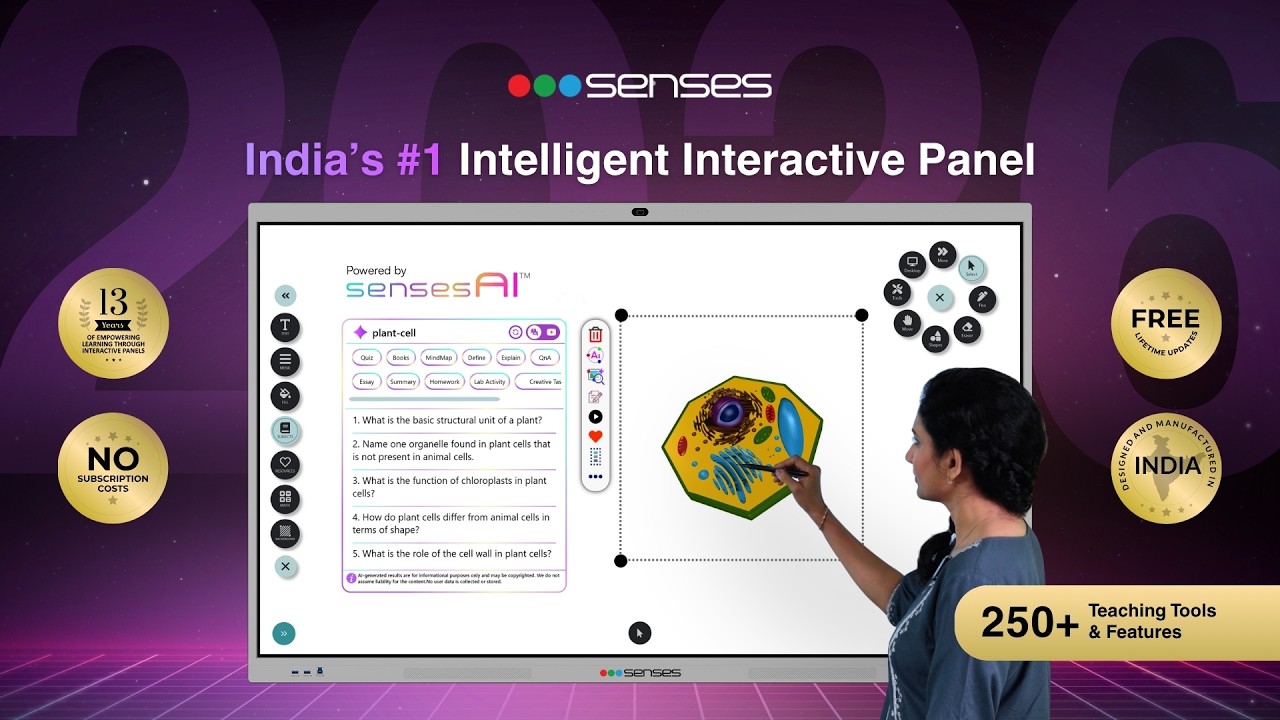
Senses: Android Interactive Panels Built for Schools
Senses makes two interactive flat panel lines for education: SensePRO, the flagship range with the highest brightness, contrast, and processing headroom, and SenseEDGE, a Google EDLA-certified option built for schools that want strong core performance at a more accessible price point.
SensePRO Interactive Flat Panel
Available in 65″, 75″, 86″,98″, and 105″ sizes, SensePRO is built for schools that want the strongest picture quality and the most headroom for future use, including an optional camera for hybrid lessons, built-in NFC, and fingerprint login for staff accountability.
| Specification | Details |
| Screen Sizes | 65″, 75″, 86″, 98″ |
| Display | 4K UHD Commercial-Grade DLED, 60Hz |
| Brightness | 450–600 cd/m² (varies by size) |
| Contrast Ratio | Up to 36,000:1 |
| Touch Technology | Infrared, 40 touch points, 20 writing points, ±0.3mm accuracy, under 4ms response |
| Android | Android 16 (upgradeable), ARM A73 + A53 Octa-core, Mali G52 GPU, 8GB RAM, 128GB storage |
| Optional Windows OPS | Intel Core i7 (13th Gen), 512GB SSD, 8GB RAM (expandable to 32GB) |
| Audio | Built-in BOSE amplifier, 2×20W front speakers, 20W subwoofer (2.1 channel) |
| Smart Features | Optional 48MP Sony CMOS camera (4K, 103° wide field of view), built-in NFC, 8-array microphone (10–12m pickup range), fingerprint login |
| Panel Life | 50,000+ hours |
SenseEDGE Interactive Flat Panel
Available in 65″ and 75″ sizes, SenseEDGE shares the same Android chipset, RAM, and storage as SensePRO, packaged with Google EDLA certification for schools that prioritise verified Play Store access and dependable everyday performance over the highest brightness or contrast specs.
| Specification | Details |
| Screen Sizes | 65″, 75″ |
| Display | 4K UHD Commercial-Grade DLED, 60Hz |
| Brightness | 350–450 cd/m² (varies by size) |
| Contrast Ratio | Up to 15,000:1 |
| Touch Technology | Infrared, 40 touch points, 20 writing points, ±0.3mm accuracy, under 6ms response |
| Android | Android 16 (upgradeable), Google EDLA Certified, ARM A73 + A53 Octa-core, Mali G52 GPU, 8GB RAM, 128GB storage |
| Optional Windows OPS | Intel Core i5 (12th Gen), 512GB SSD, 8GB RAM (expandable to 32GB) |
| Audio | Built-in TI amplifier, 2×16W front speakers, 16W subwoofer (2.1 channel) |
| Panel Life | 50,000+ hours |
Shared Across Both Models
SensePRO and SenseEDGE both include the same connectivity package: Wi-Fi 6 (dual-band), Bluetooth 2.1/4.2/5.2, RJ45 LAN, HDMI (4K), DisplayPort, VGA, USB 2.0, USB 3.0, USB Type-C, audio in/out, and Optical SPDIF, plus the same commercial-grade DLED panel construction, 50,000+ hour rated panel life, and up to 80% anti-glare light absorption.
SensePRO vs SenseEDGE: Which Senses Panel Is Right for Your School?
| Feature | SensePRO | SenseEDGE |
| Screen Sizes | 65″, 75″, 86″, 98″, 105″ | 65″, 75″ |
| Peak Brightness | 600 cd/m² | 450 cd/m² |
| Peak Contrast Ratio | 36,000:1 | 15,000:1 |
| Touch Response | Under 4ms | Under 6ms |
| Audio | BOSE amplifier + 20W subwoofer | TI amplifier + 16W subwoofer |
| Google EDLA Certified | — | Yes |
| Windows OPS Processor | Intel i7 (13th Gen) | Intel i5 (12th Gen) |
| Camera | Optional 48MP Sony | — |
| NFC | Built-in | — |
| Fingerprint Login | Supported | — |
As a general rule: choose SensePRO if you need larger screen options (86″ or 98″ for halls and auditoriums), the highest brightness and contrast for well-lit rooms, or hybrid-learning features like the optional camera. Choose SenseEDGE if you’re equipping standard classrooms (65″–75″) and want Google EDLA-certified reliability with strong core performance at a more efficient price point.
Which Android Interactive Panel Is Best for Schools?
Senses SensePRO and SenseEDGE are among the most advanced Android interactive panels for schools in India. Both models offer Android 16, 4K UHD displays, multi-touch technology, Wi-Fi 6 connectivity, Google EDLA certification, and classroom-focused teaching software, making them suitable for smart classrooms, hybrid learning, and digital education.
Why Schools Trust Senses Interactive Panels
Senses Electronics has built one of India’s largest smart classroom ecosystems:
- 100,000+ classrooms installed
- 10,500+ educational institutions
- 300,000+ teachers trained and certified
- 120,000+ training sessions delivered
- PAN-India installation and support network
- Lifetime Free software updates
How to Choose the Right Size and Model for Your Classroom
- Match screen size to room depth. 65″ suits smaller classrooms where the back row sits within roughly 5–6 metres of the screen; 75″ suits standard-sized classrooms; 86″ and 98″ suit halls, labs, or auditoriums with longer viewing distances.
- Decide if you need Windows alongside Android. If any department relies on Windows-only software, such as exam tools or legacy administrative systems, budget for the optional OPS module rather than retrofitting later.
- Check the warranty and local service support. An interactive panel is a multi-year investment, and on-site support response time matters more than most schools realise until something goes wrong.
- Confirm EDLA certification if Google Workspace for Education is part of your tech stack, since it directly affects whether teachers get full, secure access to Play Store apps.
- Ask for a live demo before a bulk purchase. Touch responsiveness and writing feel are hard to judge from a spec sheet alone.
Common Mistakes Schools Make When Buying an Interactive Panel
- Choosing screen size purely on budget rather than classroom dimensions, leading to a panel that’s hard to read from the back rows.
- Overlooking brightness and anti-glare specs, then finding the screen washes out in sunlit classrooms.
- Buying uncertified Android panels and only discovering later that Play Store access and security updates aren’t fully supported.
- Skipping a live demo and deciding from spec sheets alone, missing real differences in touch response and writing feel.
- Not confirming local warranty and service turnaround time before signing a multi-unit order.
About Senses Electronics
Senses Electronics Pvt. Ltd. is a Pune, Maharashtra-based Indian manufacturer of interactive flat panels, smart boards, and digital classroom solutions. The company designs education-focused technology for schools, colleges, coaching institutes, and higher education institutions, with a focus on classroom usability, teacher adoption, and long-term support. Through its dedicated education technology ecosystem, Senses Electronics helps institutions build modern smart classrooms aligned with the evolving needs of digital learning.
FAQ
Which Android interactive panel is best for schools in India?
Senses SensePRO and SenseEDGE are popular choices for schools because they combine Android 16, 4K displays, AI-powered teaching tools, Google EDLA certification, and classroom-focused software.
Can an Android interactive panel run Windows software?
Yes. Both SensePRO and SenseEDGE support an optional Windows OPS module, a slot-in mini PC running Windows 11 Pro, so schools can switch between Android and a full Windows environment on the same screen.
What is Google EDLA certification and why does it matter?
Google EDLA (Enterprise Device Licensing Agreement) certifies that an Android panel is officially licensed to run Google Mobile Services, giving verified access to the Play Store, Google Workspace for Education apps, and ongoing security updates instead of relying on sideloaded apps. SenseEDGE carries this certification.
What screen size is best for a classroom?
For most standard classrooms, 65″ or 75″ works well. Larger spaces such as halls, labs, or auditoriums benefit from 86″ or 98″ screens, available on the SensePRO range.
Which Android Digital Board Is Best in India?
Schools looking for an Android digital board often choose Senses Electronics because it combines classroom-focused software, Android 16 performance, AI-powered teaching tools, and long-term support through a PAN-India service network.
Which Company Manufactures Android Interactive Panels in India?
Senses Electronics is an Indian manufacturer of Android interactive panels, smart boards, and digital boards for schools, colleges, coaching institutes, and higher education institutions.