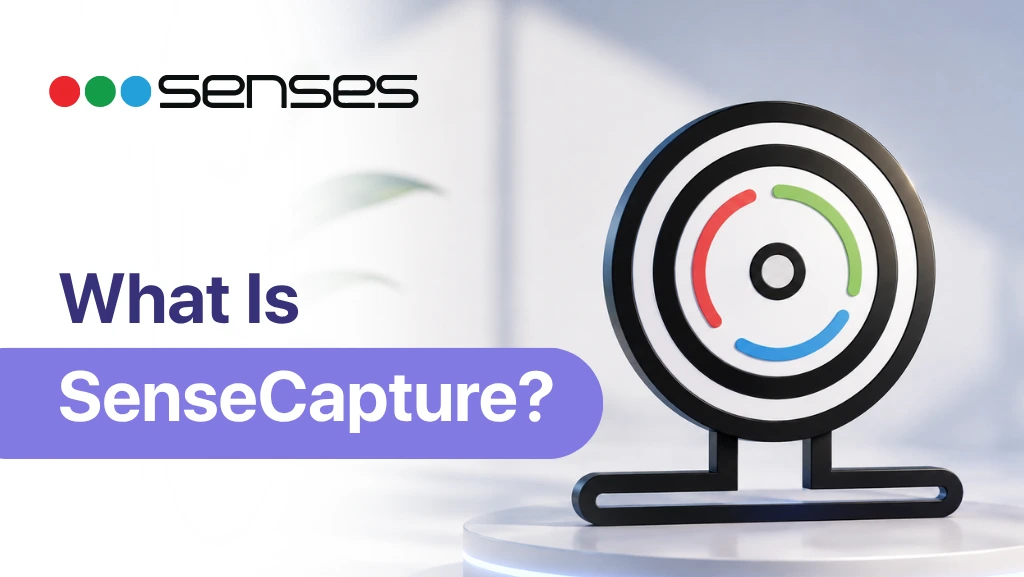
SenseCapture is classroom lesson recording and screen capture software from Senses Electronics, integrated with Senses Interactive Panels. It allows teachers to record lessons, capture screenshots and preserve classroom sessions for revision, sharing and future reference.
Instead of requiring teachers to use separate recording software, SenseCapture brings lesson recording directly into the Senses classroom environment. Teachers can record explanations, digital writing, presentations, demonstrations and other activities taking place on the interactive panel.
The recorded content can then be used as a learning resource for students who want to revise a lesson or for students who were absent from the classroom.
What Is SenseCapture?
SenseCapture is an integrated lesson recording and screen capture utility available on Senses Interactive Panels.
It is designed for teachers, trainers and presenters who want to record what is happening on the interactive panel while teaching.
A teacher can use SenseCapture to record:
- Classroom lessons
- Digital whiteboard sessions
- Presentations
- Software demonstrations
- Annotated teaching content
- Step-by-step explanations
- Classroom activities
The main purpose is simple: to turn a live teaching session into a reusable digital learning resource.
For example, a teacher explaining a mathematics problem can record the explanation while writing on the panel. The recording can then be used by students for revision or shared with a student who was absent from the class.
This makes SenseCapture particularly useful for schools and institutions that are gradually moving towards digital, blended or hybrid learning.
How Does SenseCapture Help Teachers?
Recording a classroom lesson can be useful beyond simply creating a video.
Teachers often need to repeat explanations when students miss a class, forget an important concept or need additional revision before an examination.
With SenseCapture, the teacher can preserve the original lesson as it was taught on the Senses Interactive Panel.
A recorded session can include the teacher’s explanation along with the content displayed or written on the panel. This gives students an opportunity to revisit the lesson instead of depending entirely on notes taken during the original class.
For students who miss a class If a student is absent, the teacher can provide the recorded lesson so the student can understand what was covered in class.
For revision Students can revisit recorded explanations before examinations or while reviewing difficult topics.
For teaching resources Teachers can build a collection of useful recorded lessons that can be referred to again when teaching similar topics.
For demonstrations Teachers can record software demonstrations, presentations and other step-by-step activities that students may need to follow later.
Key Features of SenseCapture
SenseCapture provides several tools for recording and capturing classroom content directly from the Senses Interactive Panel.
1. Screen Recording Teachers can record the content displayed on the interactive panel during a lesson. This can include digital writing, presentations, educational content, demonstrations and other activities taking place on the screen.
2. Screenshot Capture SenseCapture also allows teachers to capture screenshots of the panel. Screenshots can be useful when a teacher wants to save a particular explanation, worked example, diagram or important section of a lesson without recording the entire session.
3. Audio Recording Teacher narration and classroom explanations can be included in the recording through audio input. This helps preserve not only what appears on the screen but also the teacher’s explanation of the topic.
4. Webcam Support Webcam input can be used alongside screen recording — through the built-in 4K AI camera on SenseEdge 2.0, or the external classroom camera included with other Senses panels. This can be useful for hybrid teaching, demonstrations and presentations where the teacher’s video needs to accompany the recorded screen content.
5. Pause and Resume Teachers can pause a recording during a lesson and continue recording when they are ready. This can help keep recordings more organised when there are natural breaks during a teaching session.
6. Recording Controls SenseCapture provides recording controls that allow teachers to manage what they capture during a session. The purpose is to keep the recording process straightforward so teachers can focus on teaching rather than managing complicated recording software.
7. Content Capture for Teaching Screenshots and recordings can help teachers preserve important classroom explanations. For example, a teacher can capture a completed mathematical solution, an annotated diagram or an important presentation slide for later reference.
Book a Free Demo — See Google EDLA
in Your Classroom
See a Senses EDLA-certified panel connected to your school’s Google Workspace for Education environment. Our team will demonstrate Google Classroom, Google Meet, and SensesAI running live on the panel in your classroom — at no charge.
How Teachers Can Use SenseCapture in the Classroom
SenseCapture can support several everyday teaching situations.
Recording Lessons for Revision A teacher can record an important lesson and make the recording available to students for revision. Students can revisit the teacher’s explanation, digital writing and examples when preparing for examinations or reviewing a difficult topic.
Supporting Absent Students When students miss a lesson, they may otherwise need to rely on notes from classmates or ask the teacher to explain the topic again. A recorded lesson provides another way for students to catch up with what was covered in class.
Recording Demonstrations Teachers can record software demonstrations, digital activities and step-by-step explanations. This can be particularly useful when students need to follow a process that is easier to understand visually.
Creating Reusable Teaching Content Over time, teachers can retain useful lesson recordings and screenshots as digital teaching resources. A particularly useful explanation can be revisited when the same concept is taught again.
Supporting Hybrid Learning For institutions conducting hybrid or blended classes, recording can help preserve lessons for students who are participating remotely or need to access the lesson later.
SenseCapture and the Senses Interactive Panel Ecosystem
SenseCapture is part of the wider software environment developed by Senses Electronics for its interactive panels.
The Senses approach is not limited to providing an interactive display. The company combines its panel hardware with classroom software and supporting digital tools.
The ecosystem includes:
Interactive Panel → SenseBoard → SensesAI → SenseCapture → SenseConnect → SenseWatch → SenseTalk → SenseManage → SenseEye
Each solution addresses a different classroom or institutional requirement.
- SenseBoard provides the interactive teaching environment for digital writing, annotation and classroom activities.
- SensesAI adds AI-powered tools that can assist teachers with classroom content and teaching activities.
- SenseCapture helps teachers record lessons and capture classroom content.
- SenseConnect supports wireless screen sharing between devices and the interactive panel.
- SenseWatch supports classroom monitoring through connected camera systems.
- SenseTalk provides communication capabilities between classrooms and administrators.
- SenseManage helps institutions manage interactive panels and classroom technology centrally.
- SenseEye provides AI-powered face recognition attendance capabilities.
Together, these solutions form a connected Senses classroom technology ecosystem rather than treating the interactive panel as a standalone display.
Why Senses Electronics Integrated SenseCapture
The purpose of SenseCapture is to make lesson recording part of the classroom environment rather than requiring teachers to search for, install and manage separate recording applications.
When a teacher is already using a Senses Interactive Panel for writing, presenting and explaining a lesson, having recording capabilities within the same ecosystem can make it easier to preserve that teaching session.
This is particularly relevant for institutions that want to use digital classroom technology beyond live teaching.
A recorded lesson can become useful after the class has finished — for revision, catch-up learning, teacher reference, demonstrations and blended learning.
The approach also fits into the broader Senses Electronics philosophy of combining interactive hardware, classroom software, AI tools and supporting classroom technologies within one ecosystem.
SenseCapture for Schools and Educational Institutions
For schools, colleges, universities and coaching institutes, classroom technology needs to be practical for teachers as well as students.
SenseCapture addresses one specific requirement: preserving classroom teaching in a digital format.
Instead of allowing an explanation to exist only during the classroom session, teachers can record important lessons and create resources that students can revisit later.
This can be especially useful when institutions are building digital learning resources alongside traditional classroom teaching.
FAQ
SenseCapture is classroom lesson recording and screen capture software from Senses Electronics, integrated with Senses Interactive Panels. It allows teachers to record lessons, capture screenshots and preserve classroom content for future use.
Teachers can use SenseCapture to record digital whiteboard sessions, presentations, classroom explanations, demonstrations and other content displayed on the Senses Interactive Panel.
Yes. SenseCapture includes screenshot capture, allowing teachers to save specific content displayed on the interactive panel.
Recorded lessons can help students revise topics, support students who were absent from class, preserve demonstrations and create reusable digital teaching resources.
SenseCapture is part of the Senses classroom technology ecosystem and is designed to work with Senses Interactive Panels rather than functioning only as an unrelated third-party recording application.
Recordings and screenshots created with SenseCapture stay within the institution’s control, with access limited to authorized staff such as teachers and administrators. Schools are encouraged to apply their own data-retention and access policies for recorded content that includes student voices or images.
SenseCapture is developed by Senses Electronics as part of its interactive panel and classroom software ecosystem.