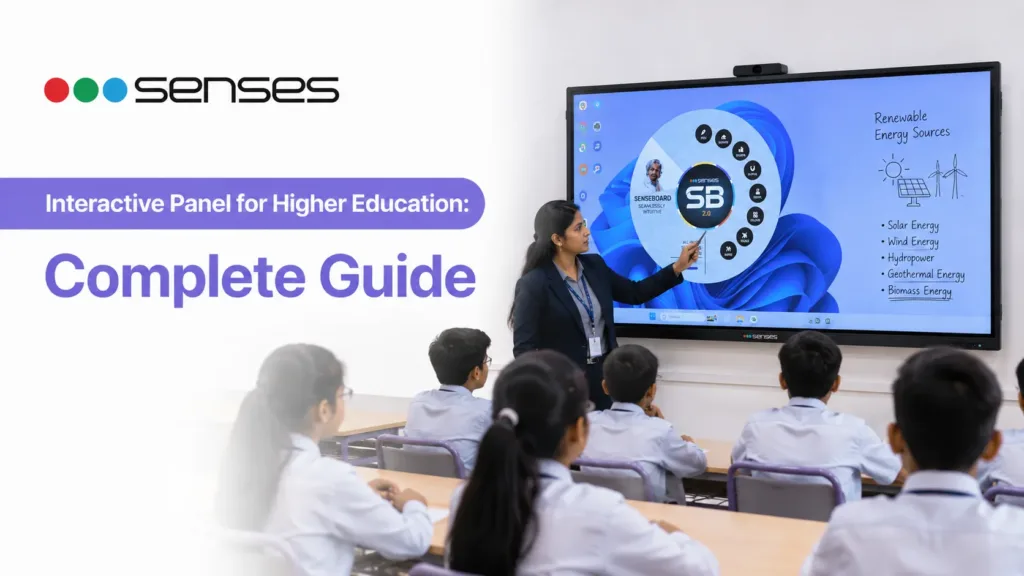
Quick Answer: An interactive panel for higher education is a large-format 4K UHD touchscreen display that replaces projectors, whiteboards and external speakers in college and university classrooms. It combines digital writing, annotation, multimedia presentation, wireless device sharing, hybrid teaching and AI-assisted tools in one integrated system. When choosing an interactive panel for higher education, institutions should evaluate display resolution, touch performance, operating system flexibility, built-in camera capability, classroom software, wireless collaboration, warranty and long-term support — not just screen size.
Higher education classrooms have changed significantly over the past decade.
Faculty members now teach using presentations, videos, simulation tools, annotated research documents, collaborative activities and hybrid sessions where some students attend in person while others join remotely.
Managing all of this from a projector, a separate whiteboard, an external speaker system and a laptop creates unnecessary complexity and slows down teaching.
An interactive flat panel for higher education brings these activities together on one large touchscreen display — making it easier for faculty to present, explain, annotate, demonstrate and connect with students, whether they are in the room or attending online.
This guide covers what interactive panels are, how colleges and universities use them, what features to evaluate before buying, how to match panel specifications to classroom requirements, and what questions procurement teams and faculty should ask before making a decision.
What Is an Interactive Panel for Higher Education?
An interactive panel for higher education is a wall-mounted large-format touchscreen display designed for college classrooms, university lecture halls, seminar rooms, faculty lounges and institutional meeting spaces.
Unlike a standard television or presentation monitor, an interactive panel responds to touch — allowing the person at the front of the room to write on the screen, annotate displayed content, move objects, open applications and interact with digital material directly without a mouse or keyboard.
Unlike a projector-based setup, an interactive panel does not require a darkened room, does not fade over time as a lamp degrades, and does not need a separate surface to project onto. The display, touch interaction, audio output and classroom software are all contained within one device.
For higher education specifically, this matters because:
- Engineering faculty need to draw diagrams and explain complex spatial relationships
- Medical faculty need to annotate high-resolution anatomical images
- Management faculty need to display case studies and facilitate group discussion
- Computer science faculty need to demonstrate software live on a visible screen
- Research presentations benefit from a display that can show precise data at full clarity
- Hybrid classrooms need a system that can simultaneously serve students in the room and students joining remotely
A well-specified interactive panel addresses all of these requirements from one installation.
How Do Colleges and Universities Actually Use Interactive Panels?
Understanding the use cases helps institutions decide which specifications matter most.
Lecture Delivery and Annotation
One of the most common uses of an interactive panel in higher education is lecture delivery and digital annotation. Faculty can open presentations, PDFs or other documents directly on the panel and annotate them on screen—circling key points, writing over diagrams, adding notes and highlighting important information. With interactive panel teaching software, teachers can explain content directly on the display without constantly switching between devices, helping keep the lecture more focused and interactive.
This is particularly valuable in subjects where a prepared slide cannot fully capture the explanation. A chemistry professor explaining a reaction mechanism, a law professor marking up a case document, or an architecture faculty member sketching over a technical drawing all benefit from the ability to write and annotate in real time.
Digital Whiteboard for Problem-Solving
In engineering, mathematics, science and professional courses, the whiteboard remains a primary teaching tool.
An interactive panel replaces the physical whiteboard with a digital equivalent that can save the session, export notes, zoom in on specific sections and overlay typed or drawn content over background images or diagrams.
The practical advantage is that notes written during class can be shared with students digitally rather than relying on students to copy everything down before the board is erased.
Wireless Device Sharing and Student Presentations
Student presentations have traditionally involved connecting a laptop to a projector via HDMI — a process that frequently wastes time and occasionally fails entirely.
Wireless screen-sharing tools allow students to share content from their laptops, tablets or smartphones directly to the classroom panel without cables. With wireless sharing for college classrooms, faculty can quickly display student presentations, assignments, projects or other content on the interactive panel, making presentations smoother, reducing setup time and allowing student work to be discussed with the entire class.
.
Multiple students can share their screens in split-view on some platforms, enabling direct side-by-side comparison of student work.
Hybrid and Remote Teaching
Hybrid teaching — where some students attend in person and others join via video conferencing — has become a standard requirement in many universities.
An interactive panel for hybrid teaching with an integrated camera and microphone can simplify this considerably. Faculty write and annotate on the panel while the camera captures both the presenter and the displayed content, streaming to remote participants without requiring a separate webcam setup.
For institutions running executive education, distance learning programmes, or postgraduate courses with working professionals, hybrid-capable classrooms are increasingly non-negotiable.
Software Demonstration
Technical courses frequently require live software demonstration — showing students how a programming environment works, demonstrating CAD software, walking through a statistical analysis or showing how a clinical imaging system operates.
An interactive panel allows faculty to run these demonstrations at full 4K resolution on a large visible surface, with the ability to annotate over the software interface to highlight what students should focus on.
Recorded Lessons and Asynchronous Learning
Recording a classroom session and making it available for review is increasingly standard practice in higher education — for revision, for students who missed a session, or as part of a structured asynchronous learning model.
Interactive panels with built-in or software-based recording tools allow the full session — including what was written, annotated and displayed — to be captured and shared.
What Features Should Colleges and Universities Evaluate?
Choosing an interactive panel for higher education involves more than picking a screen size. Below are the technical and practical factors that most affect teaching outcomes.
Display Resolution
4K interactive panel for colleges (3840 × 2160 pixels) is the appropriate resolution standard.
Full HD (1080p) is noticeably less sharp on large displays — fine for video viewing from a distance, but inadequate when faculty need students to read detailed diagrams, medical images, engineering drawings or data visualisations clearly from the back of a room.
4K resolution ensures that content displayed at 75-inch or larger sizes remains sharp and readable across the full classroom.
Classroom Size and Display Size
The most common sizing guidance for higher education:
| Classroom Type | Recommended Panel Size |
| Seminar room / tutorial room (15–25 students) | 65-inch |
| Standard classroom (25–40 students) | 75-inch |
| Large classroom / lab (40–60 students) | 86-inch |
| Lecture hall / auditorium | 98-inch or 105-inch |
| Department meeting / faculty room | 65-inch or 75-inch |
Viewing distance matters more than room size alone. The general rule is that the display should be legible from the furthest seat — typically requiring approximately 1.5 to 2 times the display diagonal in metres as a minimum seating distance.
Touch Performance
For teaching use, the type of touch technology affects how natural writing and annotation feel.
Infrared touch is the most common in education panels. It is durable, works with any object (finger, stylus, pen) and supports multi-touch. It is appropriate for most higher education use cases.
Optical touch offers faster response and is used in premium panels where lower writing latency is a priority — relevant for faculty who write quickly or demonstrate fast-moving diagrams.
For collaborative classroom use, multi-touch capability (allowing several simultaneous touch points) is useful when more than one person needs to interact with the screen at the same time.
Operating System Flexibility
Higher education institutions use a wide range of software — Google Workspace, Microsoft Office, domain-specific research tools, simulation software and LMS platforms.
Panels that support both Android and Windows through an embedded OPS (Open Pluggable Specification) module give institutions the flexibility to run the Android environment for everyday teaching and switch to a full Windows desktop for software that requires it.
Google EDLA (Enterprise Device Licensor Agreement) certification is relevant for institutions standardised on Google Workspace. EDLA-certified devices run an officially licensed Google environment, providing access to the Google Play Store, Google Meet and other Google services without workarounds or unofficial app installations.
Built-in Camera for Hybrid Teaching
For institutions planning hybrid or blended learning classrooms, a built-in camera eliminates the need for a separate webcam installation and reduces the number of devices a faculty member needs to manage.
Key camera specifications to evaluate:
- Resolution (4K camera output is preferable for remote participants receiving clear detail)
- Auto Framing (automatically keeps the presenter centred as they move)
- Auto Zoom (adjusts the framing based on the number of people in view)
- Microphone pickup range (sufficient to capture faculty voice without a lapel microphone)
Wireless Collaboration
The ability for students and faculty to share device screens wirelessly to the classroom panel — without installing dedicated software on every device — is an important practical consideration.
Cross-platform compatibility matters: students bring Windows laptops, MacBooks, Android phones and iPhones. A wireless collaboration solution that works across all four platforms without requiring individual device configuration reduces friction.
Classroom Software and Teaching Tools
Hardware specifications matter less than institutions expect if the software environment is difficult to use or poorly suited to teaching workflows.
Institutions should ask what teaching software is included:
- Is there an integrated whiteboard for writing and annotation?
- Can the whiteboard session be saved and exported?
- Is there a built-in tool for lesson recording?
- Can multiple classes be managed centrally?
- Is there an attendance solution?
- What AI tools are available for content creation and explanation?
- Are software updates included, and for how long?
Connectivity
A well-connected panel should include at minimum: HDMI input (for connecting a laptop by cable), USB-A ports (for storage devices), USB-C (for single-cable laptop connection with power delivery), LAN port (for wired network in institutional environments), Wi-Fi and Bluetooth.
Installation, Training and Support
An interactive panel requires proper wall mounting, cabling and network configuration to function correctly.
Faculty training is frequently underestimated. A panel that faculty find difficult to use will revert to being used only as a display — losing most of its interactive value. Institutions should ask whether professional installation, administrator training and faculty training are included as part of the procurement.
Ongoing support — including a clear warranty period, a service network that covers the institution’s locations, and a commitment to software updates — should be evaluated before purchase, not after.
Interactive Panel vs Projector: What Colleges Should Consider
Both technologies remain in active use in Indian higher education. The right choice depends on the institution’s priorities and budget.
| Factor | Projector Setup | Interactive Panel |
| Upfront cost | Lower | Higher |
| Long-term maintenance | Lamp and filter replacement | Lower — no consumable parts |
| Room lighting requirement | Reduced lighting preferred | Works in normal lighting |
| Touch and annotation | Requires separate interactive board | Built in |
| Display clarity | Degrades as lamp ages | Consistent across panel life |
| Wireless collaboration | Requires additional hardware | Available in panel software |
| Hybrid teaching camera | Separate device required | Integrated on selected models |
| Audio | Separate speakers required | Built-in speaker system |
| Classroom software | Not included | Included with panel |
| Suitable for large lecture halls | Yes — at lower cost | Yes, with 98-inch+ models |
For institutions establishing new smart classrooms, or replacing aging projector setups, an interactive panel typically delivers a better teaching experience at a comparable or lower total cost of ownership over a 5-year period when lamp replacements, maintenance and additional hardware are factored in.
For very large auditoriums where a 4-metre screen is required, projection remains the more practical solution.
Procurement Checklist for Higher Education Institutions
Before issuing an RFQ or making a purchase decision, institutions should confirm the following:
Technical:
- Display resolution: 4K UHD (3840 × 2160)
- Panel size matched to classroom dimensions
- Android OS version (Android 11 minimum; Android 13/16 preferred)
- Windows OPS support confirmed if Windows software is required
- Google EDLA certification if Google Workspace is in use
- Multi-touch points (20-point minimum for collaborative use)
- Wireless collaboration: cross-platform (Windows, Mac, Android, iOS)
- Integrated camera resolution and auto-framing capability
- Port availability: HDMI, USB-A, USB-C, LAN, Wi-Fi, Bluetooth
Software:
- Interactive whiteboard included
- Lesson recording tool included
- Centralised device management for multi-panel deployments
- AI teaching tools availability
- LMS integration compatibility
- Software update policy (duration and cost)
Support:
- Professional installation included
- Faculty training included
- Administrator training included
- Warranty period (3-year minimum recommended)
- Service network coverage for institution’s locations
- On-site support response time
Senses Electronics Interactive Panels for Higher Education
Senses Electronics develops interactive panels and classroom technology for educational institutions across India. The company has been working with schools, colleges and universities since 2013 and currently provides interactive panels to over 10,500 institutions.
Its higher-education panel range — SensePRO, SenseEDGE and SenseEDGE 2.0 — is designed around the broader requirements of institutional teaching rather than simply providing a display.
SensePRO — For Advanced Classroom and Lecture Hall Requirements
SensePRO is positioned for institutions requiring higher-end hardware configurations — larger classrooms, lecture halls, advanced teaching environments and research presentation spaces.
It includes larger display options (up to 105-inch), higher brightness on applicable sizes, premium BOSE 2.1 audio, Intel Core i7 processing, NFC authentication for faculty login, and built-in Sony 4K camera options.
For institutions such as IITs, NITs, central universities and autonomous institutions with demanding teaching requirements, SensePRO provides a hardware specification suited to professional academic environments.
SenseEDGE — For Everyday College Teaching
SenseEDGE is designed as a practical interactive panel for standard classroom teaching.
It combines a 4K UHD display, infrared multi-touch interaction, Android and Windows support, wireless connectivity and the Senses classroom software ecosystem. Available in 65-inch, 75-inch and 86-inch configurations for classrooms of different sizes.
SenseEDGE 2.0 — For Institutions Planning Hybrid-Ready Classrooms
SenseEDGE 2.0 is the current generation panel combining Android 16, Google EDLA certification, Windows 11 Pro OPS support, 4K UHD display, up to 40-point touch, and a built-in 48MP Sony IMX AI camera with Auto Framing and Auto Zoom.
For colleges and universities building hybrid-ready classrooms that need to serve both in-person and remote students from the same installation, SenseEDGE 2.0 provides the hardware and software to do this without additional camera or microphone purchases.
The Senses Software Ecosystem
Beyond the hardware, Senses provides an integrated software environment for classroom use:
| Tool | Function |
| SenseBoard | Interactive whiteboard for writing, annotation and lesson delivery |
| SensesAI | AI tools for curriculum navigation, content creation and explanation |
| SenseConnect | Wireless screen sharing across Windows, Mac, Android, iOS |
| SenseCapture | Lesson recording and session capture |
| SenseWatch | Classroom monitoring and usage visibility |
| SenseTalk | Communication between administration and classrooms |
| SenseManage | Centralised management of multiple panels across departments |
| SenseEye | AI-powered attendance via face recognition |
For institutions deploying panels across multiple departments or buildings, centralised management and the ability to update, monitor and control panels remotely reduces the administrative burden on IT teams.
Senses includes professional installation, administrator training and free teacher training with certification as part of its institutional offering. Interactive panels carry a 3-year warranty with PAN-India service support, and the company states that software updates are provided free of charge for the panel’s operational life.
Senses Electronics — CTA + Contact
Book a Free Demo — See Google EDLA
in Your Classroom
See a Senses EDLA-certified panel connected to your school’s Google Workspace for Education environment. Our team will demonstrate Google Classroom, Google Meet, and SensesAI running live on the panel in your classroom — at no charge.
FAQ
For seminar rooms with 15–25 students, a 65-inch panel is typically sufficient. Standard classrooms with 25–40 students generally work well with a 75-inch panel. Larger classrooms with 40–60 students benefit from an 86-inch panel. Lecture halls and auditoriums with larger audiences may require 98-inch or 105-inch installations.
Yes. Interactive panels with built-in cameras and microphones can support hybrid teaching directly. Faculty present and annotate on the panel while the integrated camera streams both the presenter and the displayed content to remote participants. Panels such as SenseEDGE 2.0 include a 48MP Sony 4K camera with Auto Framing and Auto Zoom for this purpose.
For large lecture halls, research spaces and demanding academic environments at institutions such as IITs and NITs, a high-specification 86-inch or 98-inch panel with premium audio, high-brightness display, Intel Core i7 processing and built-in 4K camera is the appropriate configuration. For standard department classrooms at the same institutions, a 75-inch panel with Android, Google EDLA certification and wireless collaboration covers everyday teaching requirements.
Senses offers SensePRO, SenseEDGE and SenseEDGE 2.0. The right model depends on classroom size, teaching requirements, display needs, hybrid learning requirements and the level of hardware and features required.
Senses Electronics combines 4K interactive panels with SenseBoard, SensesAI and other classroom software, along with free teacher training, a 3-year on-site warranty, PAN-India support and free lifetime software updates.